


Set Up a Group Assignment
You can assign a grade and provide feedback to all of the members of a group at once—and then make any adjustments for individuals that might be necessary. Here's how:
- Create an assignment link.
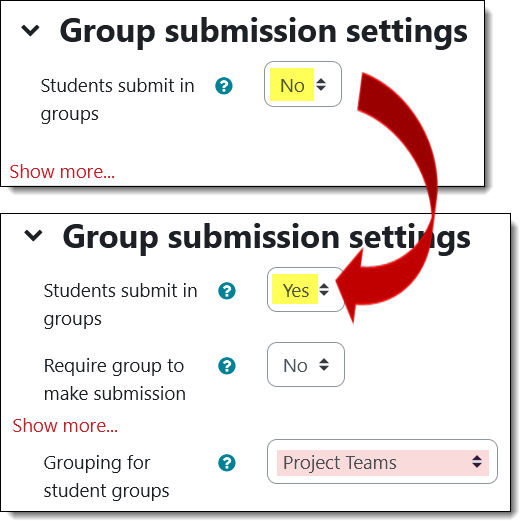
- In the Group submissions options area, change the Students submit in groups option to Yes.
- If your course has more than one type of group, select the grouping that the groups belong to so that submissions will be allocated to the correct students.
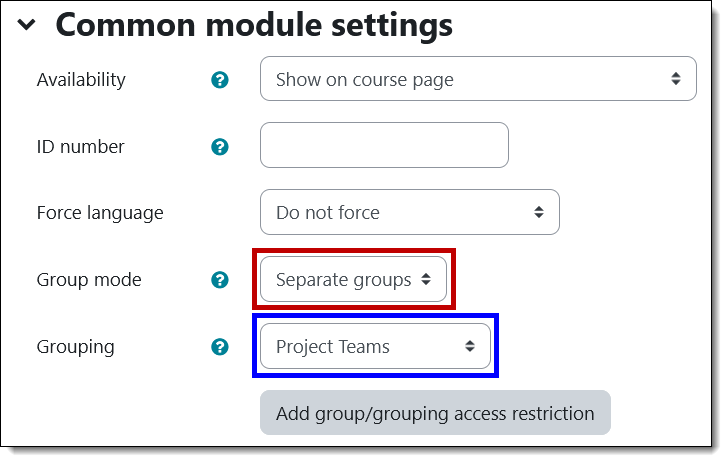
- In the Common module settings area, choose Separate groups and select the appropriate Grouping if needed. (Note: You do not need to restrict access to the link to a group or grouping.)
- Save changes.
Caution: Once any student has submitted an assignment, you will no longer be able to deactivate the group submission setting or adjust the group designation for the assignment. If you don't want an assignment set for group submission, but a student has already made a submission, your best bet is to duplicate the assignment link, remove the group submission option, ask anyone who has submitted their work to resubmit to the new link (or save their submission to your computer), then delete the original link.
Grade a Group Assignment
To grade an assignment that has been designated for groups:
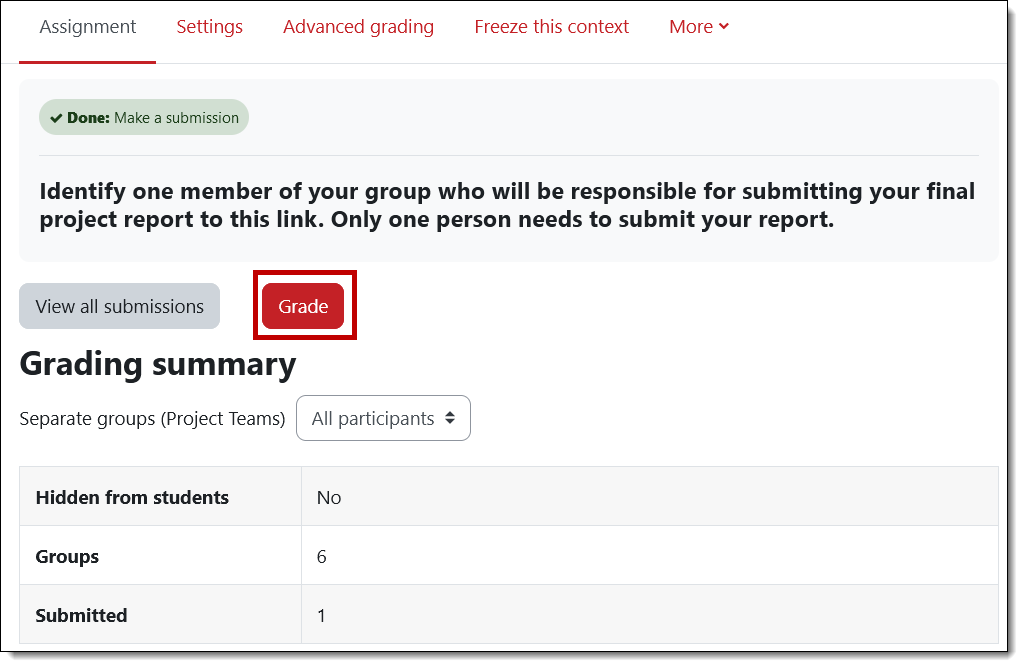
- Open the assignment link and select a group to grade.
- Click on Grade.
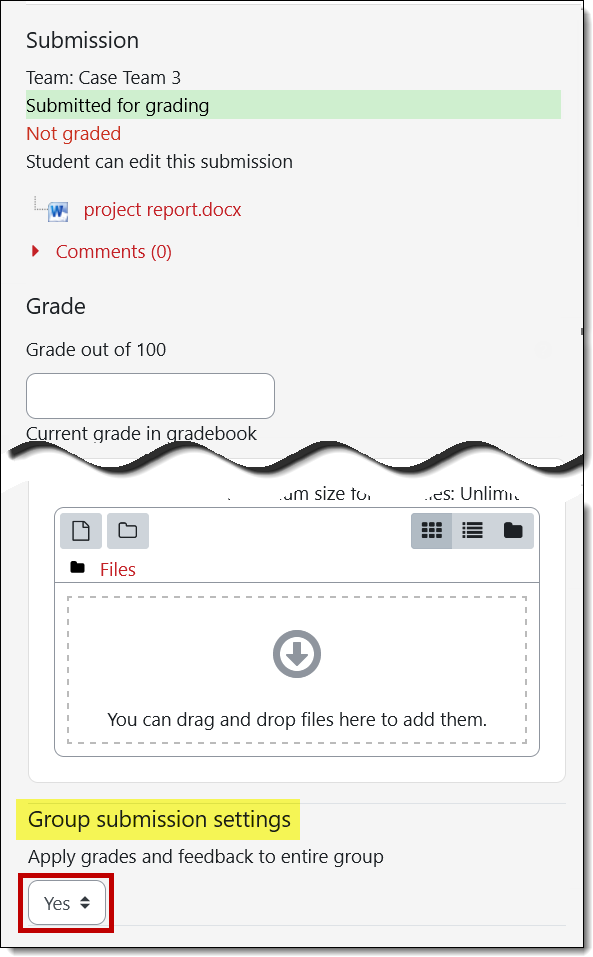
- Enter a score and general feedback for the group.
- Scroll down to the bottom of the grading interface and click on Yes to assign the score and feedback to all the members of the group. Save changes.
- To adjust the score of any individual and/or provide specific feedback to a member of the group, navigate to their grade interface and make the desired adjustments. Save changes.
Add a comment
Please log in to submit a comment.